Members and roles
Invite people to work in your account, and decide what each one may do.
Members are the people who can work in your account: a co-author, an assistant, a developer. Each one signs in with their own address and has a role that decides what they can change. Nobody shares a sign-in.
The three roles
| Role | Can do |
|---|---|
| Owner | Everything, including billing and deleting the account. Only an owner can make another owner |
| Admin | Sending domains, API keys, members, integrations such as webhooks, and settings, plus everything a member does |
| Member | The day-to-day work: audience, mail, the site, and money |
Every account keeps at least one owner.
How to invite someone
- Open Settings > Members.
- Under Invite someone, type their Email and pick a Role.
- Click Send invitation.
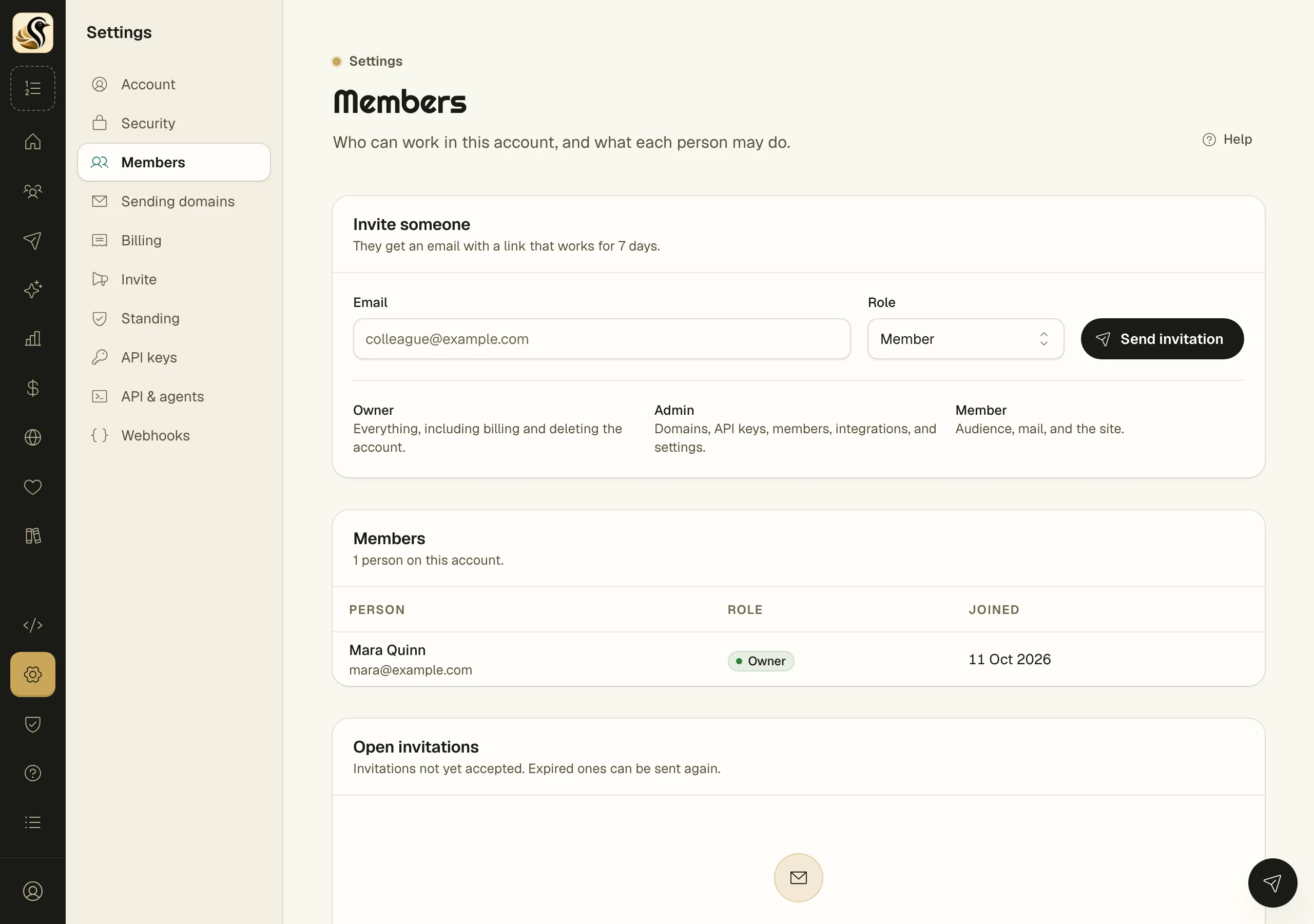
They get an email with a link that works for 7 days. Until they accept, they are listed under Open invitations as Pending, or Expired once the week is up. From that list you can send an invitation again or withdraw it. A withdrawn link stops working.
How to change a role or remove someone
- Open Settings > Members.
- In the Members list, pick a new role from the person's role menu. The change takes effect at once.
- To remove someone, click the remove button on their row, then Remove member.
What happens next
When someone accepts, they join the account with the role you chose and appear in the Members list. If they already have a Kōlea sign-in, the account is added to it, and they switch between accounts from the panel at the bottom of the left rail.
A removed member loses access at once. Their work stays, and you can invite them again later.
Things to know
- Owners and admins invite people. Admins can invite admins and members, never owners, and cannot change or remove an owner.
- You cannot change your own role or remove yourself from this screen.
- Confirm your own email address before inviting anyone. Kōlea sends no mail for an account until then.
- Your plan sets how many members the account can have. See Billing and standing.