Signup forms
A hosted page per form, an embed for any site, a POST from anywhere, and a reply with a file.
A signup form is how new readers join your list from anywhere: your own site, someone else's, or a link in your bio. Each form has a hosted page, a snippet you paste into any site, and an address your own code can post to. It can tag new readers, send them a reply, and hand them a file.
Make a form
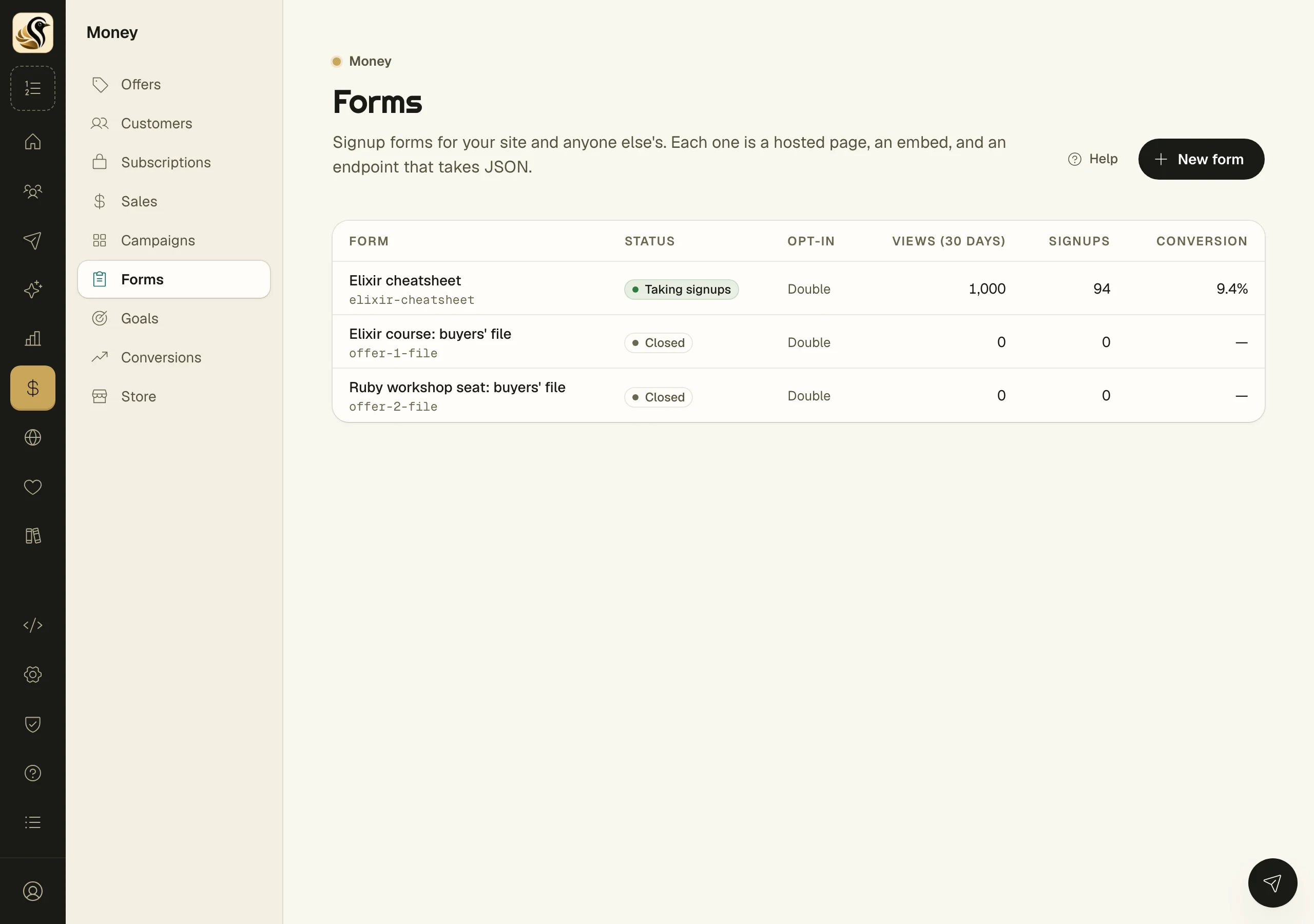
- Open Money > Forms and click New form.
- Give it a Name. Add a Description and a Thank-you message if you like, or a Redirect after signup to send people to a page of yours.
- Under Consent, leave Double opt-in on, and add Tags to apply when someone joins.
- Click Create form.
Put it on a page
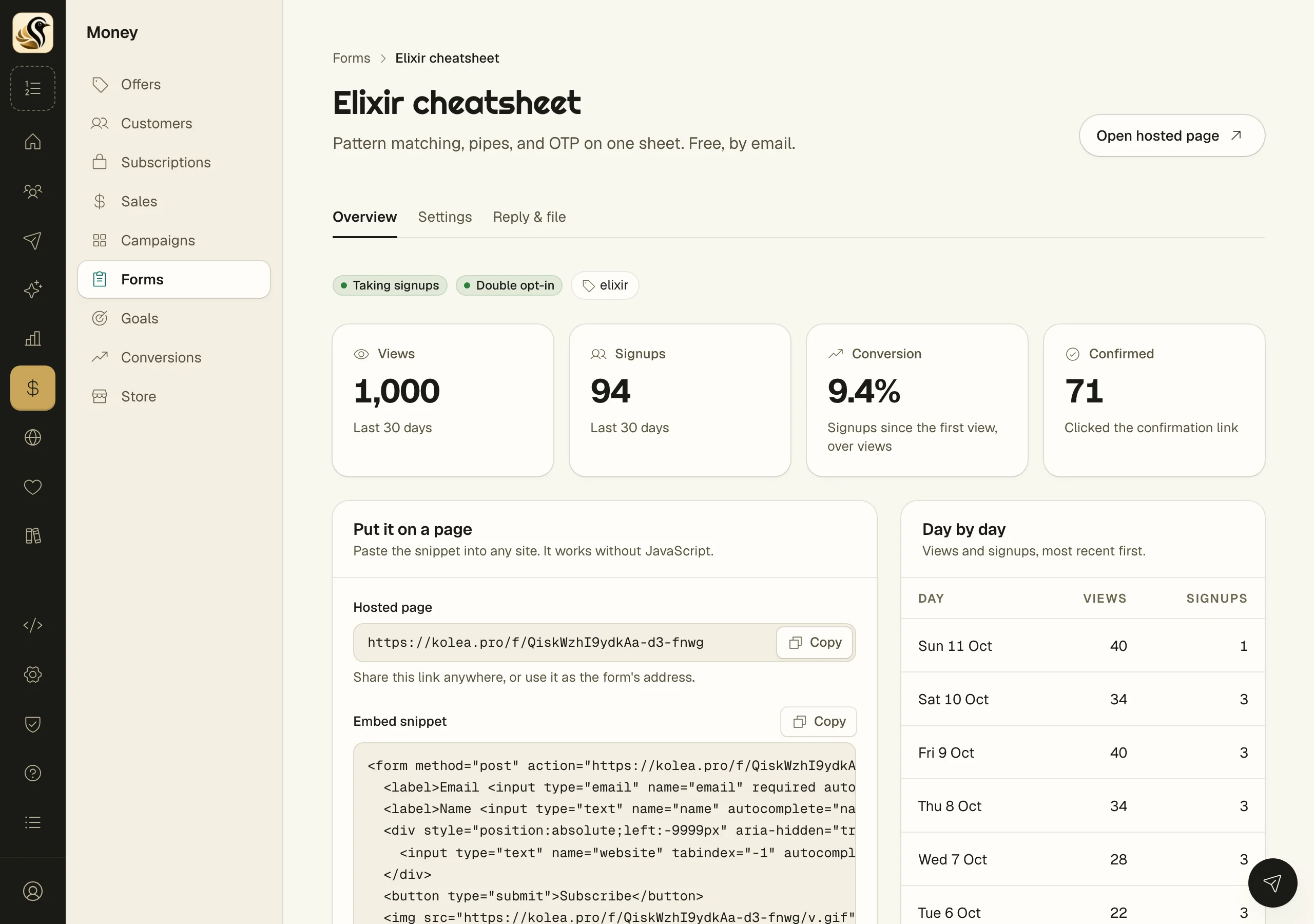
Open the form. Under Put it on a page:
- Hosted page is a link you can share anywhere. Click Open hosted page to see it.
- Embed snippet is HTML to paste into any site. It works without JavaScript.
- Posting JSON from your own code is an example for a developer. The details are in the forms API reference.
Send a reply and a file
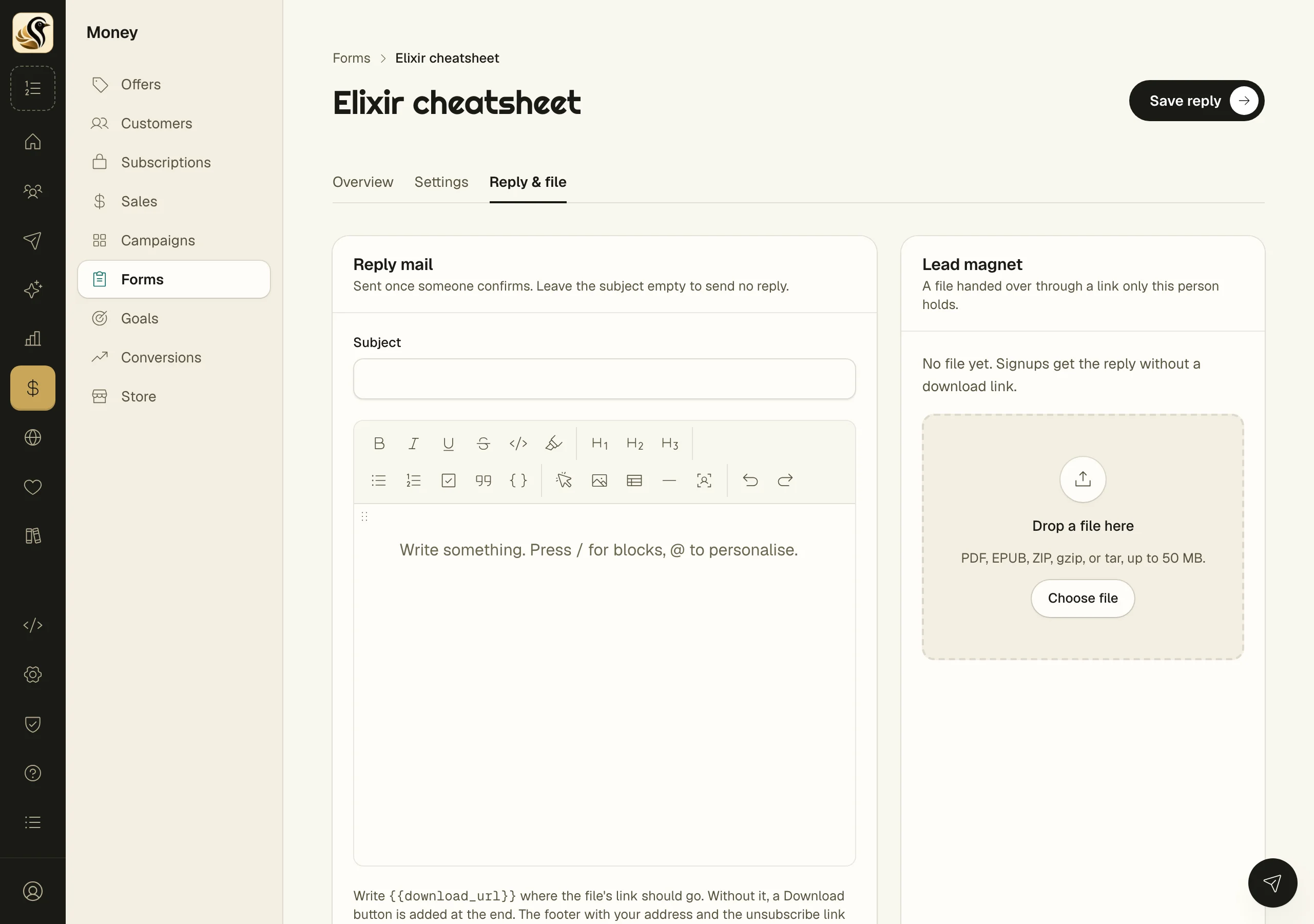
- Open the form and click the Reply & file tab.
- Under Reply mail, give it a Subject and write the mail, then click Save reply. Leave the subject empty to send no reply.
- Under Lead magnet, drop a file or click Choose file, then click Attach file. PDF, EPUB, ZIP, gzip, or tar, up to 50 MB.
Write download_url in double curly braces where the file's link should go. Without it, a Download button is added at the end.
Change its settings
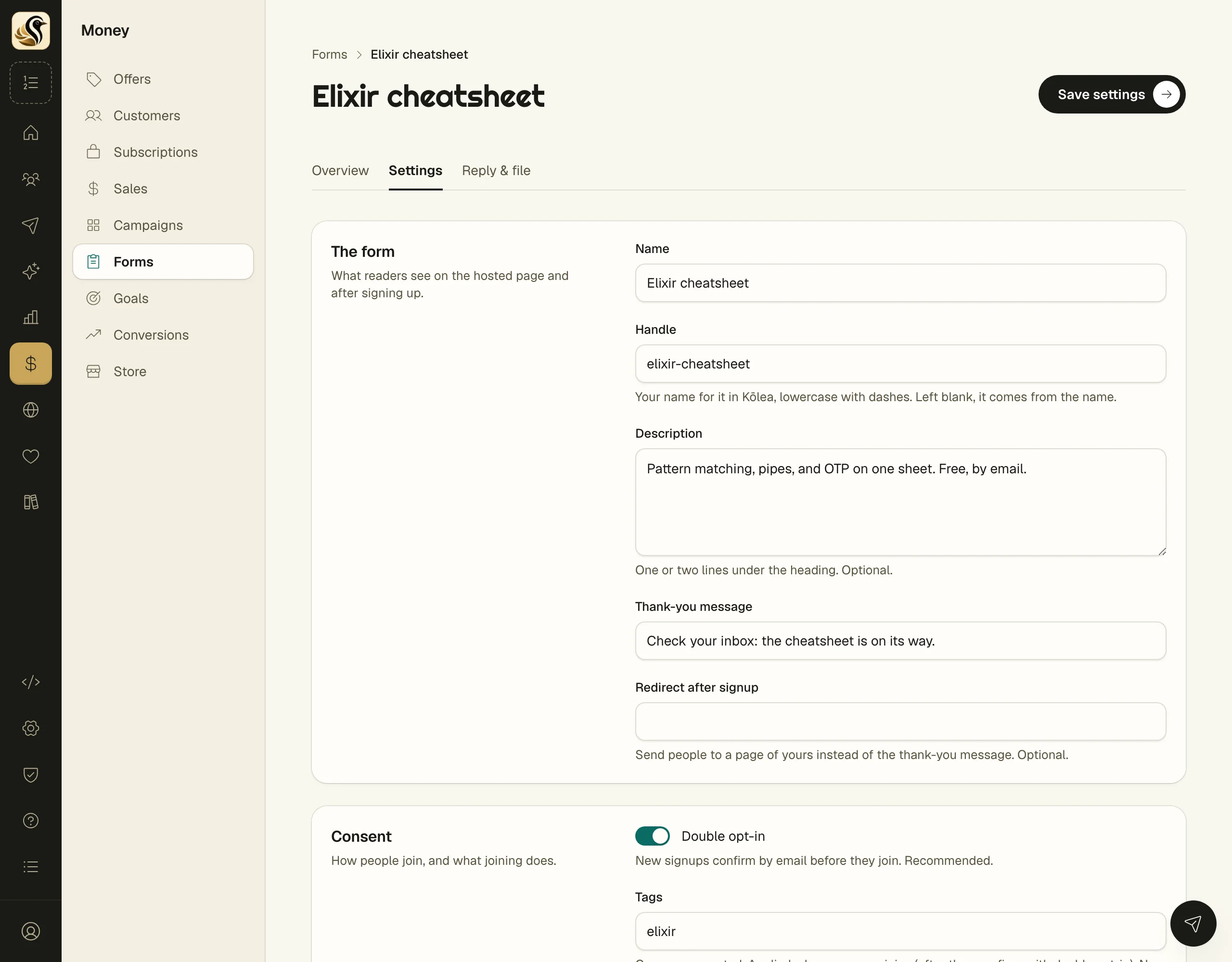
The Settings tab holds the same fields as a new form. Three of them are easy to miss:
- Taking signups: switch it off to close the form.
- Require the hosted page: only signups made on the hosted page are accepted. The embed becomes a link.
- Use for my site's subscribe box: signups from your public site go through this form.
Click Save settings.
What happens next
With double opt-in, a new signup gets a confirmation mail and joins only after clicking it. Then the tags are applied, which can start any sequence that begins with one of those tags, and the reply goes out with their own download link. Without double opt-in, all of that happens at once.
Things to know
- Double opt-in is on unless you turn it off. While your account is in probation it cannot be turned off.
- Views are counted when the hosted page or the snippet loads in a browser. Bots and link previews are not counted.
- Turned away shows bot signups caught by the hidden field, and signups refused by rate limits or the hosted-page check.
- A closed form refuses signups and counts no views.
- Removing the file stops every link already sent. Uploading a new file instead keeps them working.
- Deleting a form stops its snippet working and removes its counts and download links. Subscribers it added stay on your list.
- To credit a form's signups to a launch, add it to a campaign.