Segments
Saved audiences built from status, tags, arrival, and custom fields, with a live count as you build.
A segment is a saved description of a group of people, such as "active, tagged elixir, not in the workshop". You pick one when you send a broadcast, so the right mail reaches the right readers. The builder counts the audience while you work, so you know the size before you save.
Build a segment
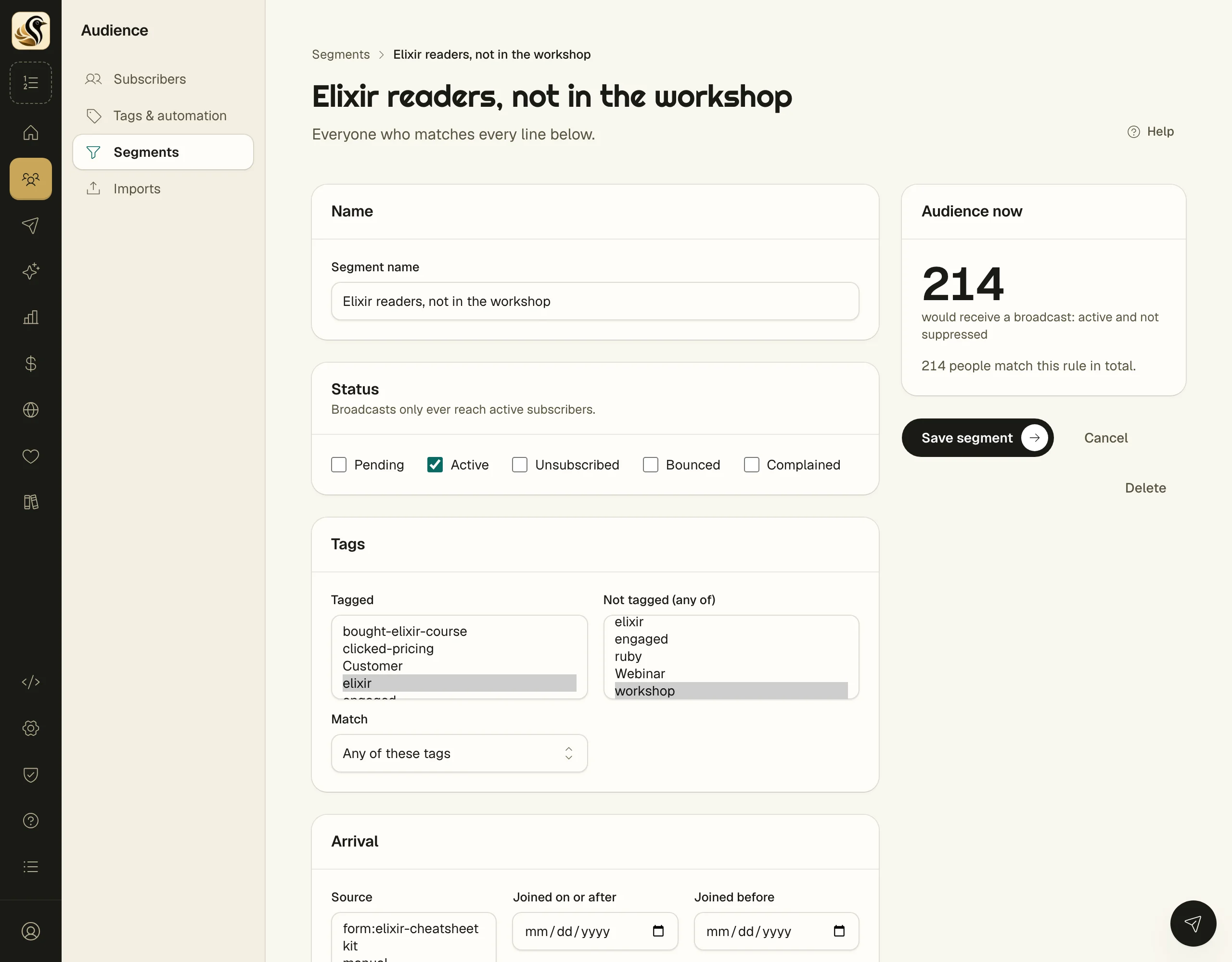
- Open Audience > Segments and click New segment.
- Type a Segment name.
- Under Status, tick the statuses to include. Broadcasts only ever reach active subscribers.
- Under Tags, choose tags in Tagged, then set Match to Any of these tags or All of these tags. Choose tags in Not tagged (any of) to leave out anyone who carries one of them.
- Under Arrival, narrow by Source, Joined on or after, and Joined before. With no source picked, every source counts.
- Under Custom fields, click Add a field condition, then pick the Field, the Test (such as is, is not, contains, is above, is below, is set), and the Value. Click the x to remove a line.
- Watch Audience now on the right, then click Save segment.
A person is in the segment only when they match every part you filled in.
Read the count
Audience now shows two numbers:
- The large number is how many would receive a broadcast: active and not suppressed.
- Below it, how many people match the rule in total, whatever their status.
They differ when your rule includes pending, unsubscribed, bounced, or complained people, or when some matching addresses are suppressed.
The segments list
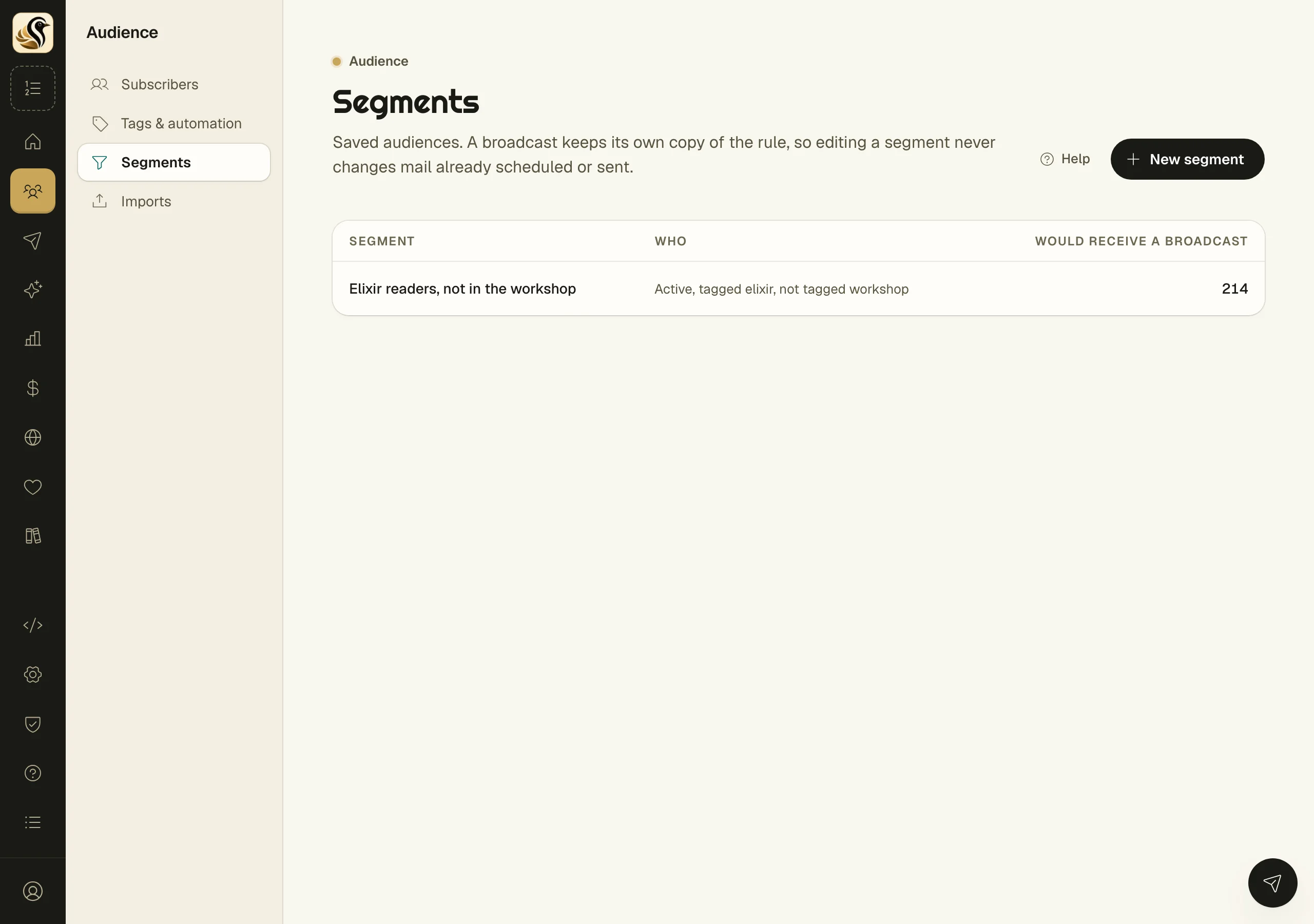
Each saved segment shows its name, a plain sentence saying who is in it, and how many Would receive a broadcast right now. Click a row to edit it.
What happens next
A broadcast keeps its own copy of the rule. Editing or deleting a segment never changes mail already scheduled or sent.
Things to know
- The count is worked out fresh each time, so it moves as people join, leave, and get tagged.
- Custom fields appear here once a CSV import has created them.
- To delete a segment, open it and click Delete. Broadcasts that used it keep their recipients. This cannot be undone.