Subscribers and the timeline
Everyone on your list, one record per address, with what each person did and how to export or erase them.
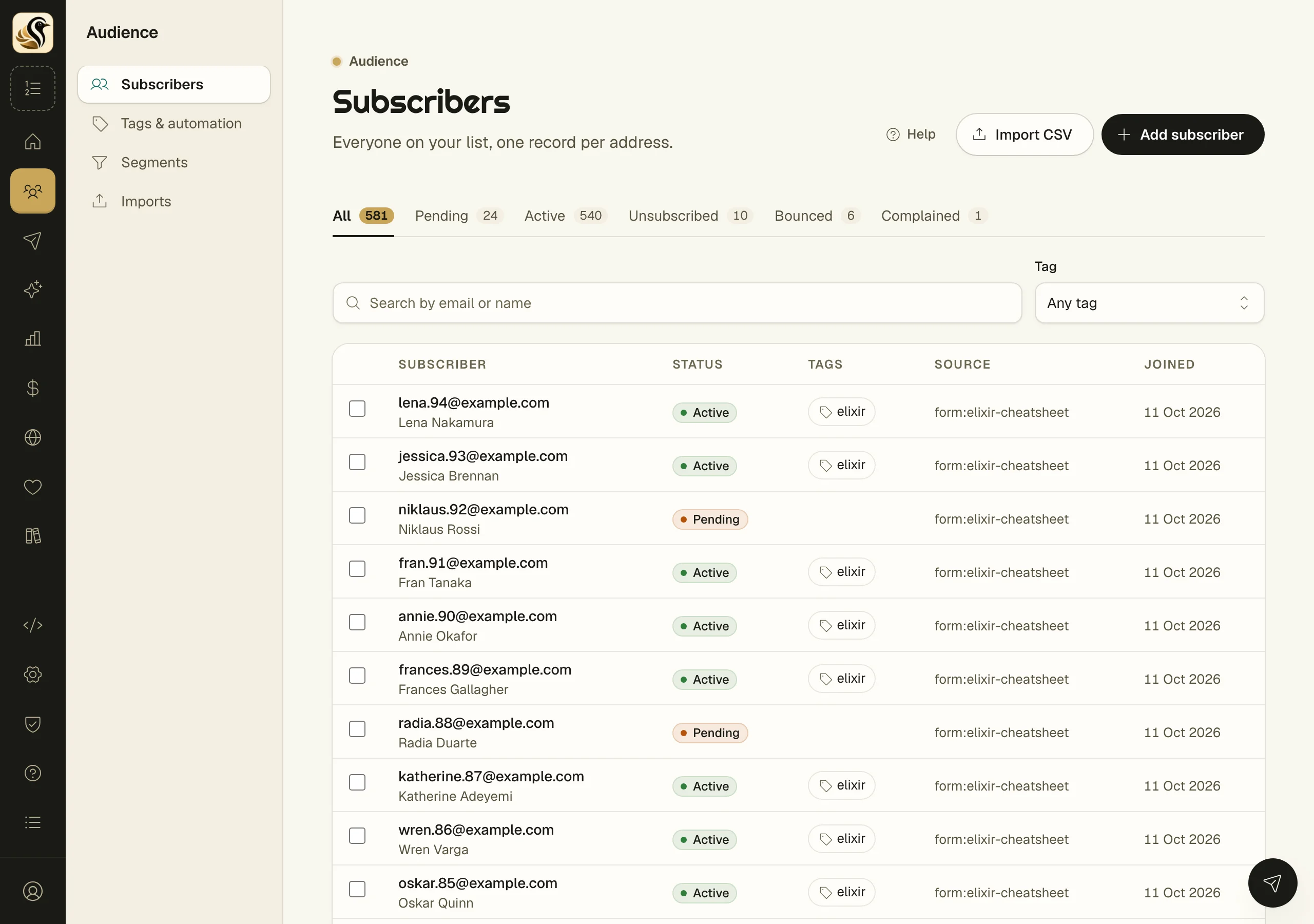
The Subscribers screen is your list: one row per email address, with a status, tags, where they came from, and when they joined. Open anyone to see their standing, edit their profile, tag them, and read the timeline of everything that has happened to them.
Find people
- Open Audience > Subscribers.
- Pick a status tab to narrow the list: All, Pending, Active, Unsubscribed, Bounced, or Complained. Each tab shows its count.
- Type in Search by email or name, or choose a tag from Tag.
- Click a row to open that person.
The filters live in the page address, so you can bookmark a filtered view or send it to a member of your team.
Add someone by hand
- Click Add subscriber.
- Fill in Email, and Name if you have it.
- Choose a Status: Active receives broadcasts, Pending is on file but gets no broadcasts.
- Click Add subscriber.
Only add people who asked to hear from you. Adding someone sends nothing by itself. To bring in many people at once, use Import CSV (see Importing a list).
Tag many people at once
- Tick the people you want, or click Select this page.
- To go further, click Select all in the bar that appears. The link names how many people match, and it covers everyone your current filter matches, not just this page.
- Type a tag name and click Apply tag. A new name creates the tag.
One person's page
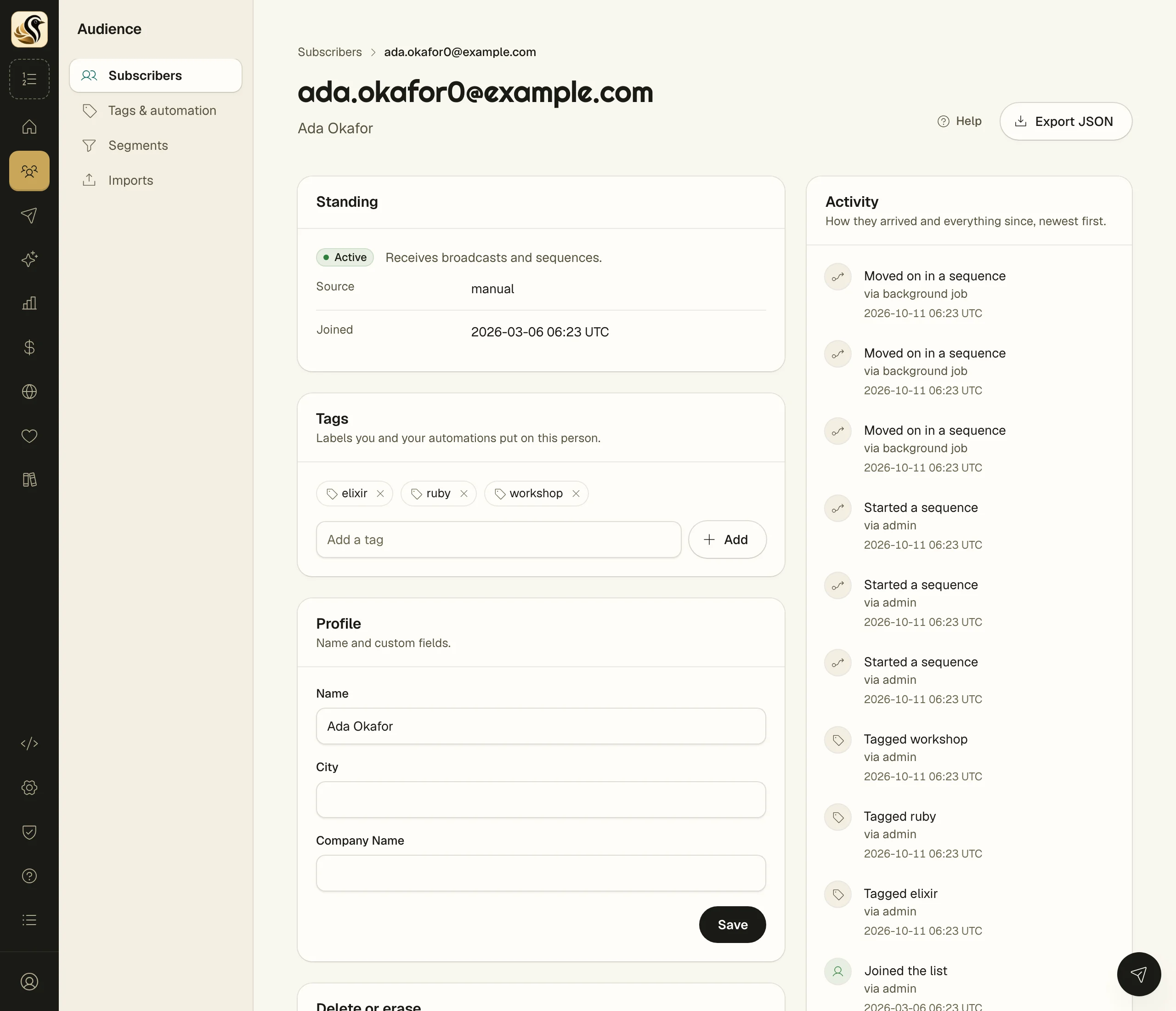
- Standing shows their status and what it means, their source, when they joined, and, when it applies, when they confirmed, when they left the newsletter, and the address they signed up from.
- Tags lists their tags. Type in Add a tag and existing tags are suggested as you type. Click the x on a tag to remove it.
- Profile holds their name and your custom fields. Click Save after editing.
- Activity is the timeline, newest first: how they arrived, tags added and removed, sequences started, moved on, finished, or left, unsubscribes, bounces, complaints, purchases, and refunds. Each line says where it came from, such as admin, form, import, API, or background job.
Export, delete, or erase
- Export JSON downloads everything held about this person, for a data-access request.
- Delete removes them with their tags and history. If their address is suppressed, it stays suppressed.
- Erase on request is for a data-erasure request. Everything about them is deleted, and the address is kept on your suppression list so a later import cannot add them back.
Neither delete nor erase sends anything.
Things to know
- Status is shown, not edited. It changes when the reader unsubscribes, rejoins, bounces, or complains.
- An unsubscribed person still gets the sequences they are in. Only they can rejoin the newsletter.
- Pending people get sequences and receipts, but no broadcasts.
- Custom fields come from the columns of a CSV import.
- Two addresses that differ only in capital letters are the same person.