Agents and MCP
Connect Claude or another AI agent to your account, see every call it makes, and decide whether it may send mail.
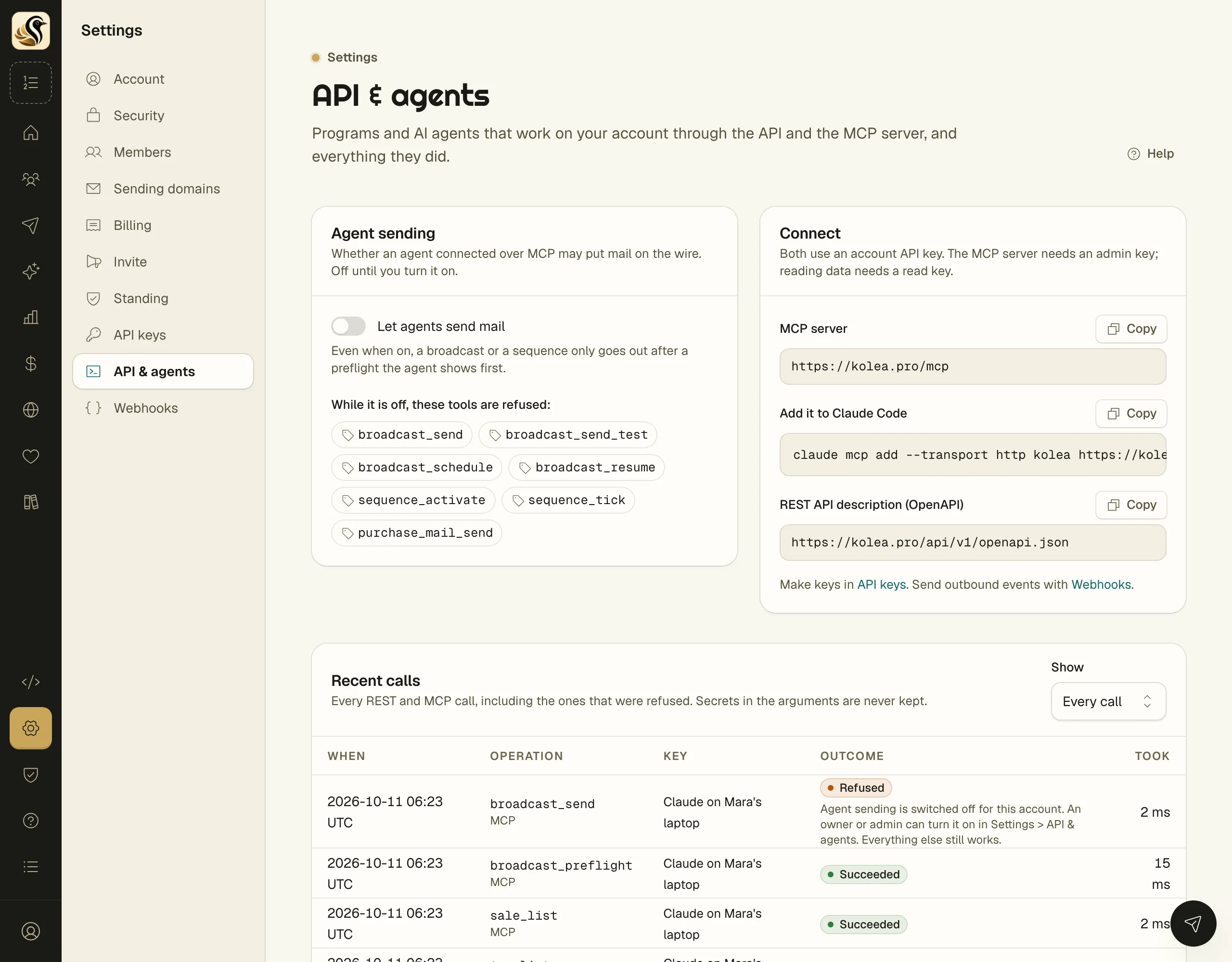
An AI agent such as Claude can work on your account for you: look up subscribers, draft a broadcast, build a segment, read your sales. It connects through Kōlea's MCP server with one of your API keys, and every call it makes is written down where you can read it. Sending mail is the one thing it can't do until you say so.
Connect Claude
- Open Settings > API keys and make a key with the Scope set to Admin. Give it a Name you'll recognise, like "Claude on my laptop". The MCP server needs an admin key.
- Open Settings > API & agents.
- Under Connect, click Copy beside Add it to Claude Code.
- Paste it into your terminal, replace the admin key placeholder at the end with the key you made, and run it.
Any other MCP client takes the MCP server address and the same key, sent as a bearer token.
For other programs, REST API description (OpenAPI) is the address of the API's description, which most tools can read.
Turn on sending for an agent
Agent sending is off until you turn it on. While it's off, an agent can do everything else, but these tools are refused: broadcast_send, broadcast_send_test, broadcast_schedule, broadcast_resume, sequence_activate, sequence_tick, and purchase_mail_send.
- Open Settings > API & agents.
- Under Agent sending, switch on Let agents send mail.
Even with it on, a broadcast or a sequence only goes out after the agent runs a preflight and shows it first. Switch it off at any time; the change takes effect at once, and the page shows when it last changed.
Read what an agent did
Recent calls lists every REST and MCP call made with your keys, including the ones that were refused.
- When and Took: when it happened and how long it ran.
- Operation: the tool or endpoint, marked MCP or with its HTTP method and path.
- Key: which of your keys made the call.
- Outcome: Succeeded, Refused, or Failed, with the reason for the last two. A send refused because agent sending is off says so here.
Use Show to list only one outcome.
Things to know
- Secrets in a call's arguments are never kept in the log.
- An agent works under the same rules you do. Consent is checked before every send, whoever starts it.
- Only owners and admins can turn agent sending on or off. Other members see whether it's on.
- To cut an agent off completely, revoke its key under Settings > API keys.